
Mekik
App
Send any file between your phone and your computer. No cloud, no account.
About Mekik
Mekik moves files between an Android phone and a computer. Photos, videos, documents and anything else go straight from one device to the other, over your own network or a USB cable. There is no cloud and no account.
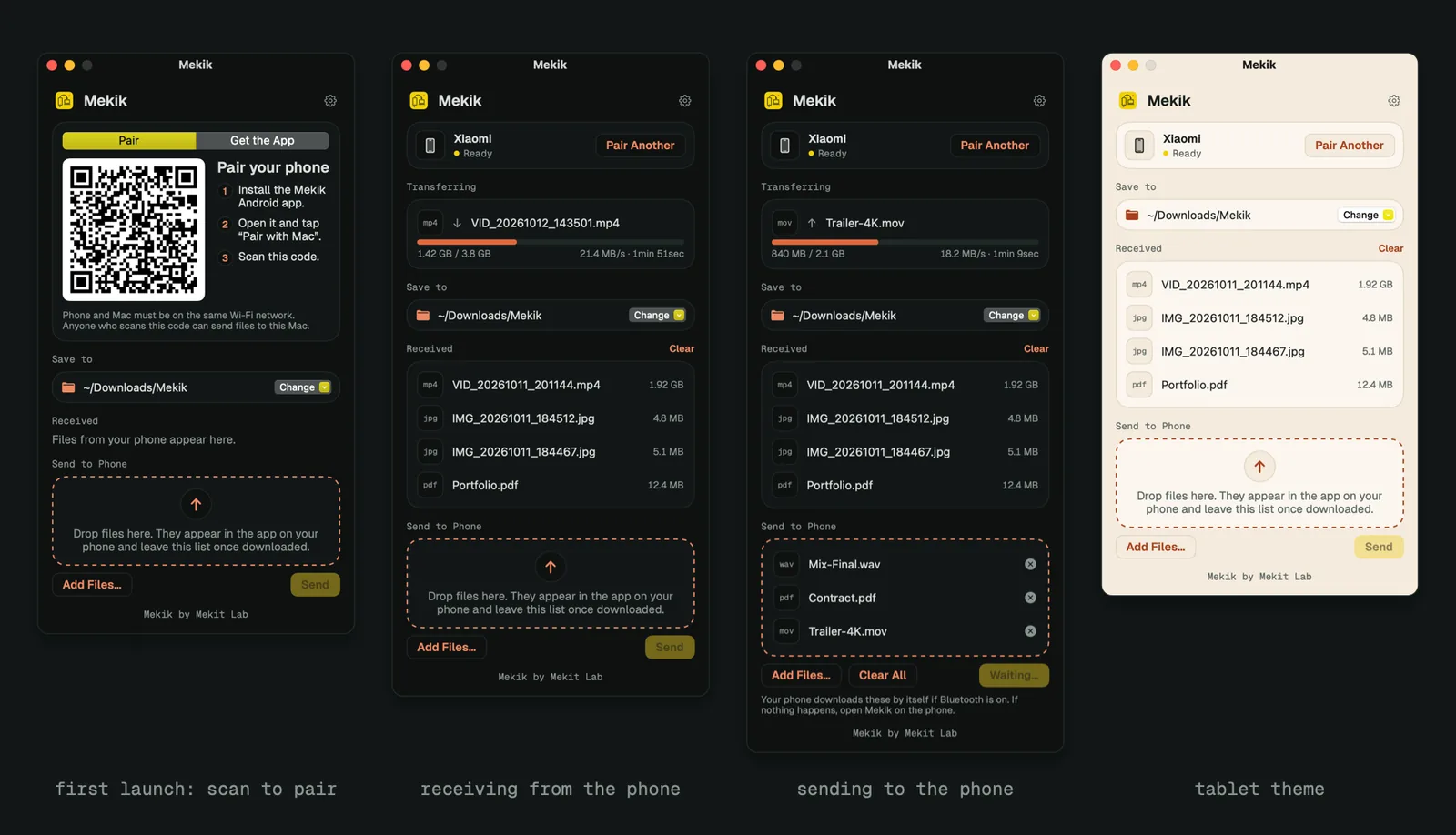
Every transfer is encrypted with AES-256-GCM. The devices share the key once, when you scan the QR code on your Mac.
Screenshots
What it does
- Any file, any size
- Transfers run over several connections in parallel.
- Hard to interrupt
- If the connection drops, a transfer continues where it stopped. It also keeps going with the phone's screen off.
- Encrypted
- AES-256-GCM, with a key shared once through a QR code. Files don't go through any server.
- A whole trip at once
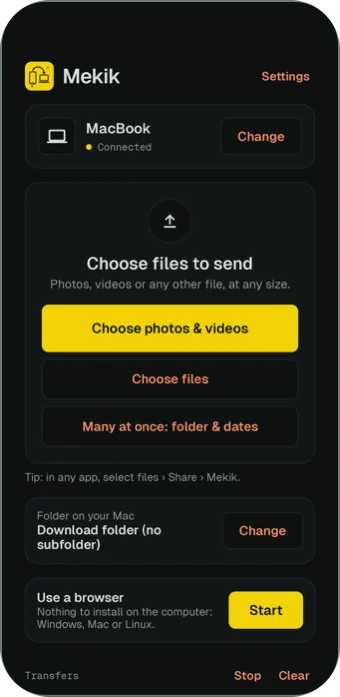
- Pick the camera folder and the days you want, and send thousands of photos together. No photo permission needed.
- Phone to Mac
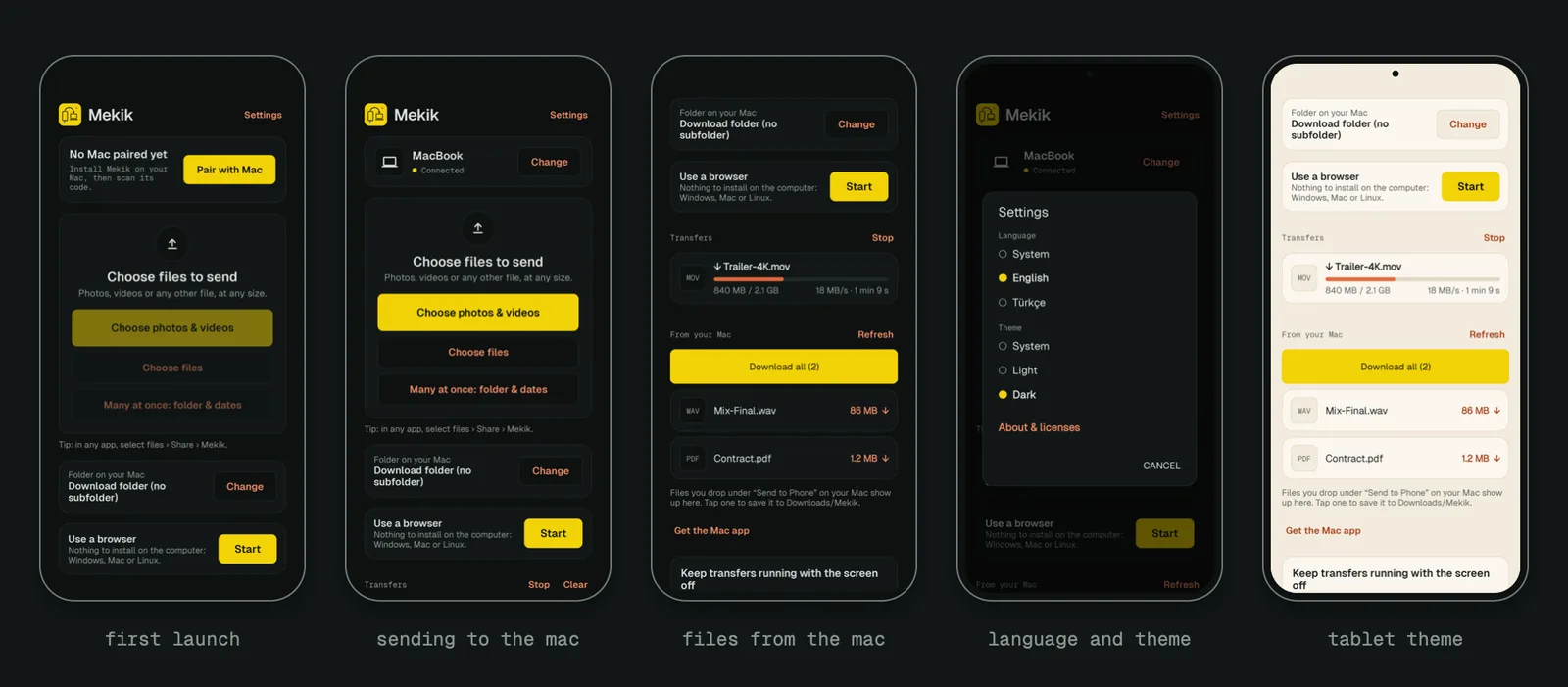
- Share from any Android app, or pick files in Mekik. You can choose a subfolder on the Mac for each batch.
- Mac to phone
- Drop files on the Mekik window, or use Finder's Services or Open With menu. The phone downloads them.
- Faster with a cable
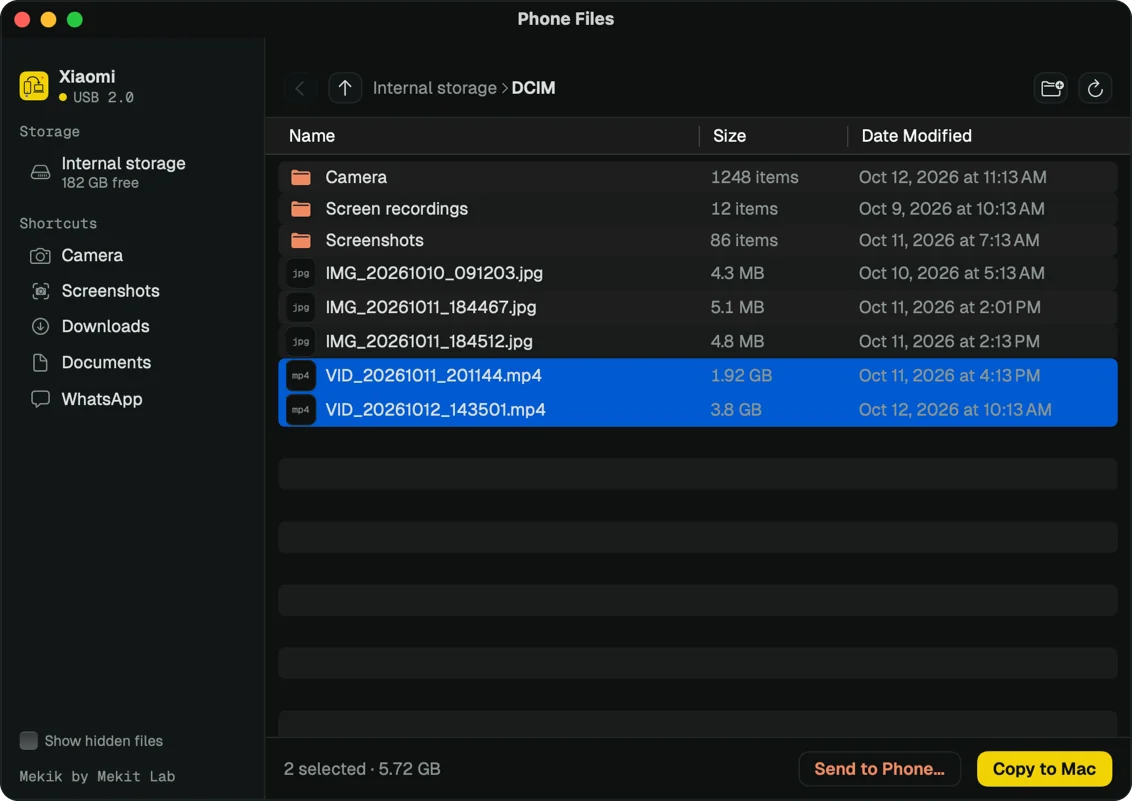
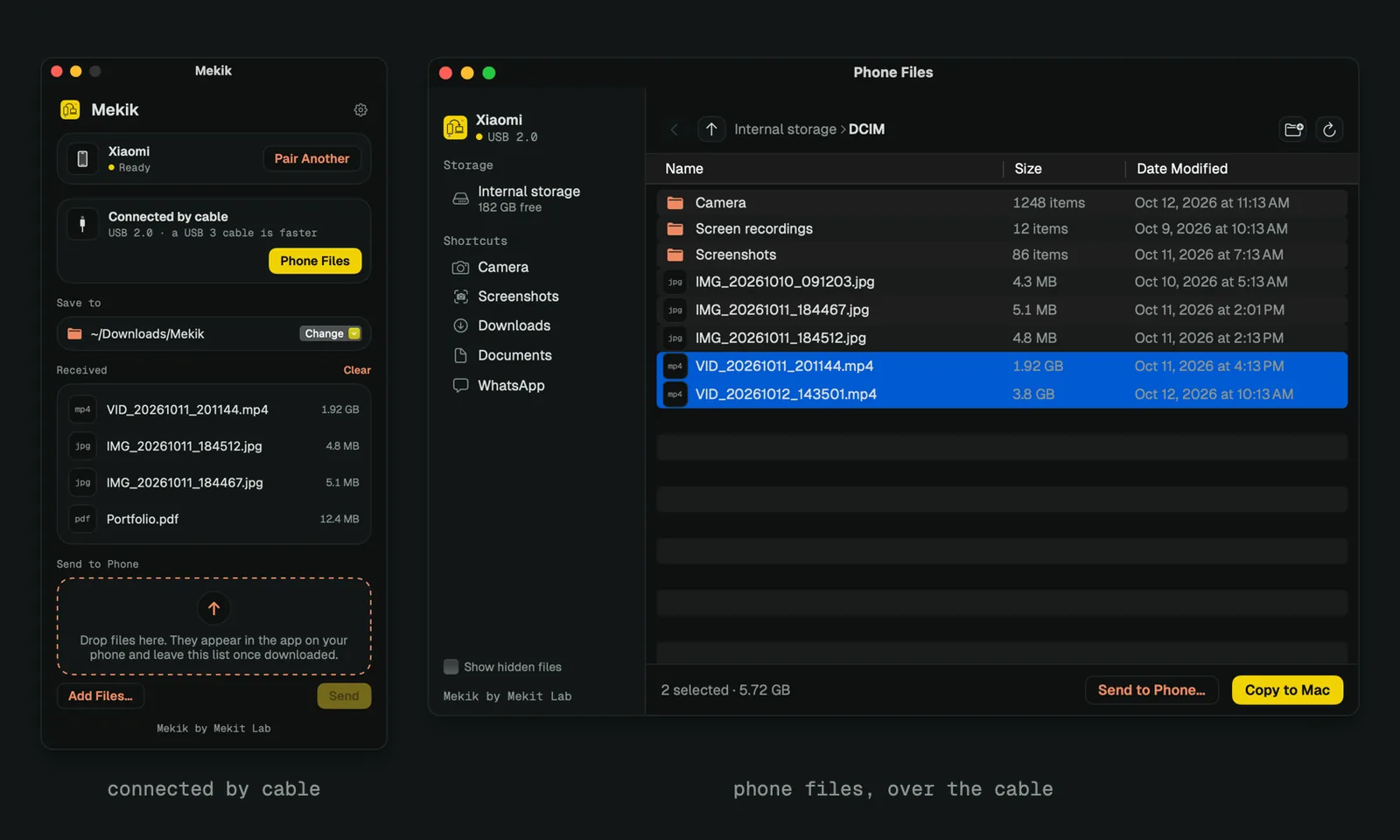
- Plug the phone into the Mac and Mekik switches to the cable. You can browse the phone's folders on the Mac. This needs the optional access to all files on the phone.
- Or use a browser
- On Windows, Mac or Linux, open the address the phone shows. Nothing to install on the computer.
- No router needed
- With the Mac app, the phone finds the Mac over Bluetooth and connects directly. Files still travel over Wi-Fi.
- English and Turkish
- Light and dark themes. Both follow your system, or you can choose.
Good to know
The Mac app isn't notarized by Apple yet, so macOS may block it the first time. It also asks for access to the Downloads folder, Bluetooth and the local network. Without the cable, your phone and Mac should be on the same Wi-Fi network, or the Mac app can find the phone over Bluetooth. On Xiaomi and similar phones, set Mekik's battery use to “No restrictions” so transfers continue with the screen off.
Install it
- On your Mac, open Mekik.dmg and drag Mekik to your Applications folder.
- Open it. If macOS can't verify the app, go to System Settings › Privacy & Security and click Open Anyway. When asked, allow incoming connections.
- Install Mekik.apk on your phone. Your browser will ask you to allow installs from this source.
- On your phone, tap Pair with Mac, then Scan code. Scan the QR code in the Mekik menu in your Mac's menu bar.
- Choose files and send them.
What's new in v2.1
PhoneDrop is now Mekik, with a new name and logo, English and Turkish, and dark and light themes. New: transfers over a USB cable, browsing the phone's files from the Mac, using any computer's browser, and sending many photos at once by folder and date. Fixed: the app closing while sending a large camera folder. If you used PhoneDrop, Mekik installs as a new app. Update your phone and Mac together, pair them again, then remove PhoneDrop.
Details
- Version
- 2.1
- Released
- 29 Nov 2026
- Works on
- macOS 13 or later (Apple Silicon and Intel) and Android 10 or later. With the browser option, any computer with a web browser.
- Languages
- English, Turkish
- License
- MIT, open source. The Mekik and Mekit Lab names and logos aren't covered by it.
- Support
- [email protected]
- Privacy
- Files go straight between your devices. The QR code scanner sends diagnostic data to Google. Privacy policy